


Environments
Repositories
Promote/Publish
Teams
Launch Buttons
Promotions
Tagging
CLI Guide


2
min
Create Launch Buttons
Set up launch buttons in Solsta to give your team one-click shortcuts for running files after installing an environment. Launch buttons let you create custom workflows or allow members to quickly run or open files after installing an environment.
Two Types of Launch Buttons
- Global Custom – Created at the Environment level and visible to everyone on your team who installs the environment. Only Admins can create global launch buttons.
- User (Local) – Personal launch buttons visible only to the creator, designed for faster shortcuts and workflows.
Global Launch Button
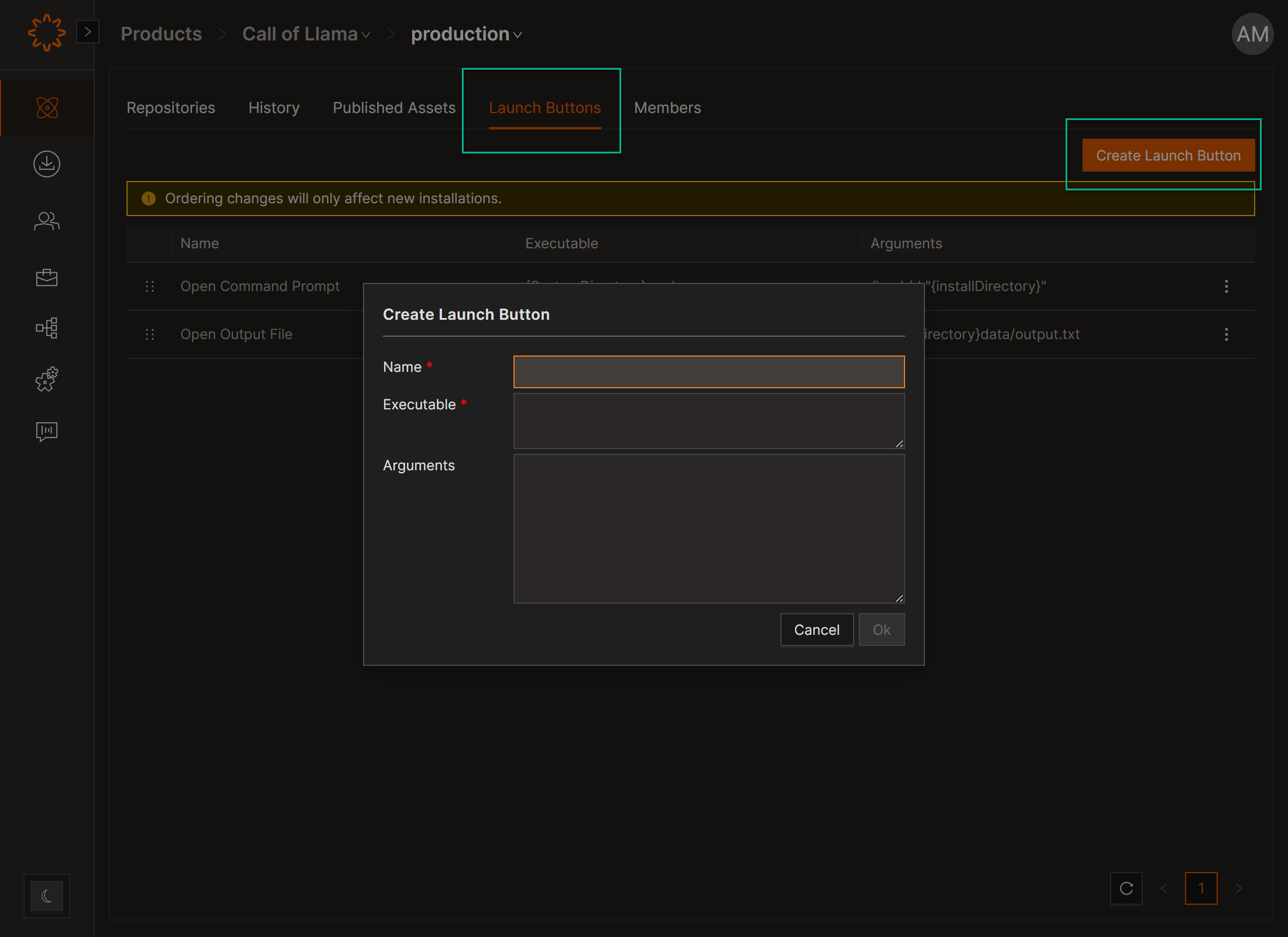
Create a Global Launch Button (Admin) so all teams can see the same launch buttons under each environment
- Open Product → Environment.
- Select the Launch Buttons tab.
- Click Create Launch Button.
- Enter:
- Executable (required)
- Arguments (optional)
- Click Create.
Local Launch Buttons
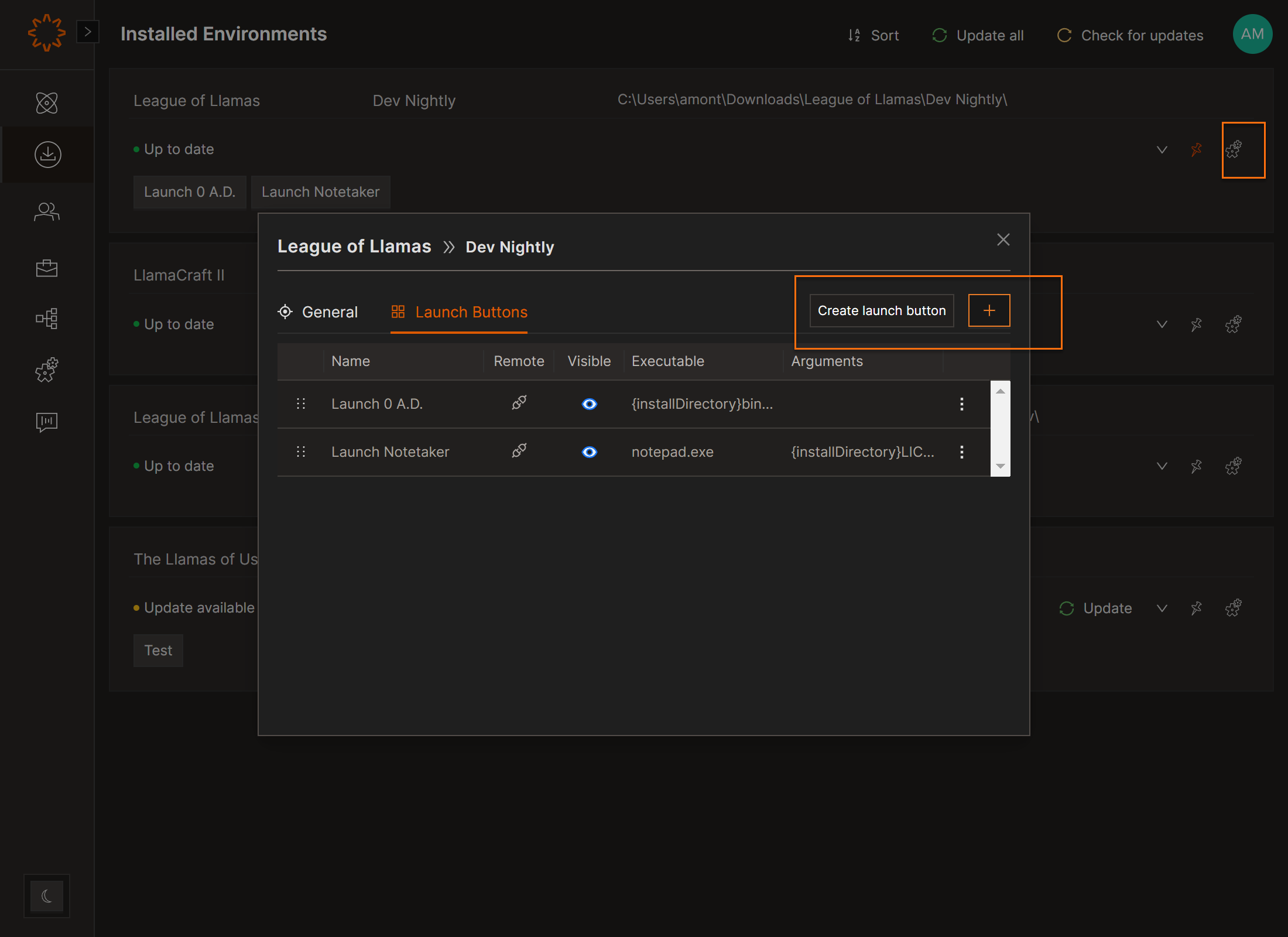
Manage Local Launch Buttons once you have installed an environment
- Navigate to Installed Environments tab
- Select Settings Icon
- Choose Launch Buttons Tab
- Copy/View/Edit/Reorder/Delete: Options in the Launch Buttons panel.
- Disabled Buttons: Appear grayed out if the mapped file isn’t installed locally.
macOS Tip: To open non-application files, use /usr/bin/open as File Path and {installDirectory}file.pkg as Arguments.
DOs
DONTs
Pro Tips
Install Environment first if you are trying to create you own user launch button so it won't impact anyone else


